
TeachersPayTeachers has really been trying to step up their note to followers game. Now we can send more than one a month, AND we can schedule them ahead of time! I never used this feature before, but I knew I really should because those are people who wanted to hear from my and see more of my products, so they are a really warm audience to market to!
One of the things that helped me become more consistent with using the feature is (surprise) batching my notes out! I’ve added it to my monthly to do list and almost always either repurpose email content or Youtube content. I create my note in Canva and upload it to Google Drive to then share it with my followers in a way that’s much more visually appealing than TPT’s editor. Let me teach you how to make a beautiful Note to Followers!
How to Make a Beautiful Note to Followers
- First, design your note. You can do this in any program, and as a teacher author, you probably already have a favorite program. Use PowerPoint, Slides, or Canva to create your newsletter.
- Make sure you add any clickable links you need. This will work similar to your terms of use or an upsell page you add to a resource.
- Export your design. You’ll do this twice: once as a PDF and once as an image file.
- Upload the PDF to your cloud platform of choice. I like Google Drive for this! Get the share link for the file in the cloud.
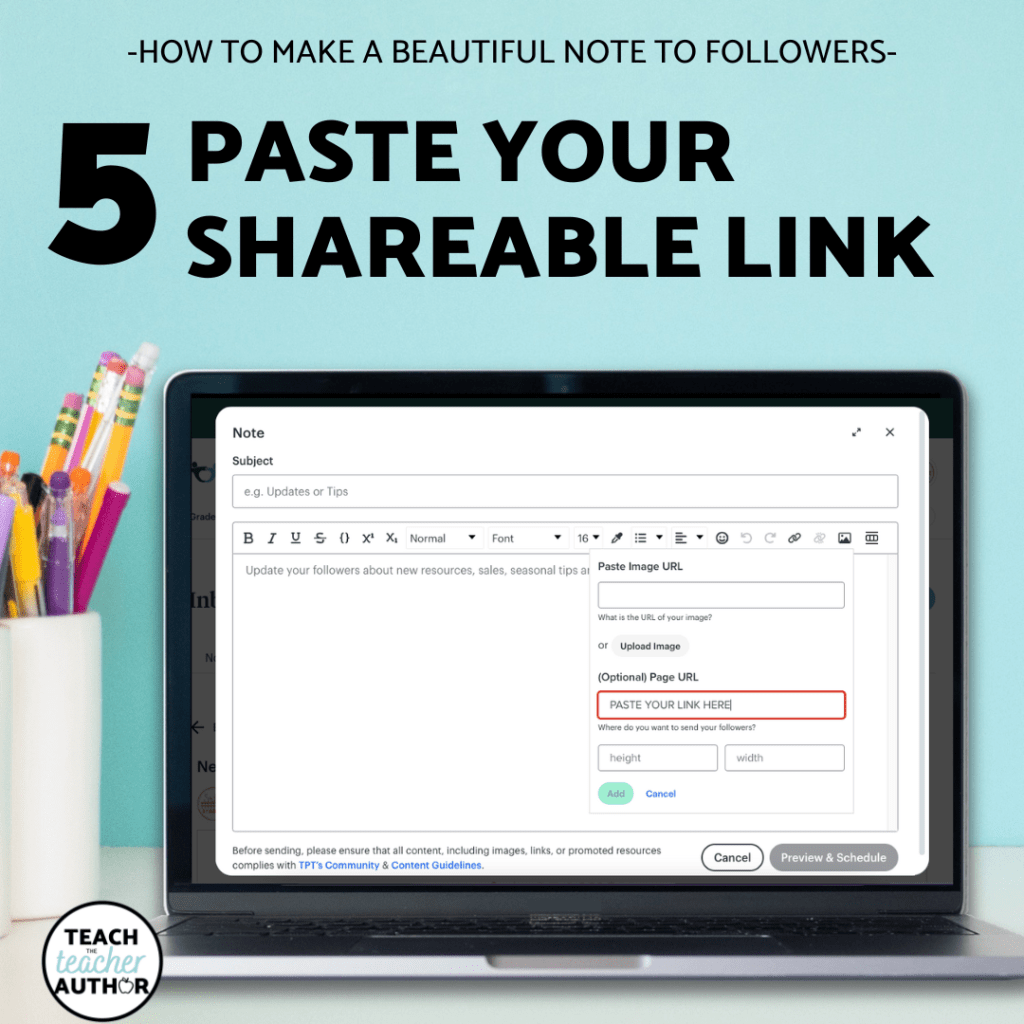
- Add the image to your Note to Followers in TPT’s editor. As you upload the image, paste the share link in the tool where it asks for a URL (image below).
- That’s it! Send or schedule your note as you prefer.
TPT Note to Followers Templates
If you’d like to save yourself time, grab some pre-made templates for yourself here!
There are 10 templates, including:
- highlight one resource or blog post
- highlight 2 resources or blog posts
- share a round up of resources or blog posts and a highlighted resource
- templates for site-wide sales announcements
- and more!
I’ve also recorded a video to teach you how to edit the Canva templates for yourself!


 Teach the Teacher Author